Giving AI Eyes and a Keyboard in the Terminal
The Story
It started with a frustrating internal debug tool I was building at work.
I was leaning heavily on AI to write the code. Since it was an internal tool, architectural purity wasn’t the main focus, but the user interface actually had to be good. I chose opentui, a popular framework for building Text User Interfaces (TUIs).
There was just one massive problem: the LLM was completely blind.
It would confidently generate layout code, but the actual result on screen would be a misaligned, broken mess. AI agents live in a world of stdout and stderr streams. Tell an agent to run a shell script, and it does perfectly fine. Tell it to build an interactive TUI, and it fails because it has no idea what the rendered output actually looks like.
My entire development loop devolved into me running the code, taking a screenshot, pasting it back to the LLM, and saying, “The left pane is overlapping the right pane. Fix it.”
Eventually, I got tired of being a human screenshot API. I realized: what if the AI could run the terminal, take its own screenshots, test its own keystrokes, and fix its own UI bugs? That’s why I built mcp-tuikit.
The ‘Aha!’ Moment: Enter Tmux
My first attempt at solving this involved trying to manually parse terminal output streams and strip ANSI codes. Do not do this. It is a path to madness. Every terminal app handles screen clearing, cursor repositioning, and color codes differently.
The realization was that I didn’t need to build a terminal emulator from scratch. I just needed something that could maintain a virtual terminal state reliably. Enter tmux.
Tmux is the perfect invisible middleman. It allocates a real pseudo-terminal (PTY), runs the application, and maintains the exact state of the character grid. Better yet, tmux capture-pane allows us to dump the exact textual representation of the screen at any given millisecond.
Instead of an agent dealing with infinite scrolling text or getting stuck on a prompt, we just ask tmux: “What does the screen look like right now?”
Text is Good, Vision is Better
Reading a text grid is a massive step up, but modern LLMs have multimodal capabilities. They are incredibly good at parsing visual layouts—which is exactly what I needed when debugging my opentui app.
So, mcp-tuikit doesn’t just scrape text. It captures visual PNG snapshots of the terminal state.
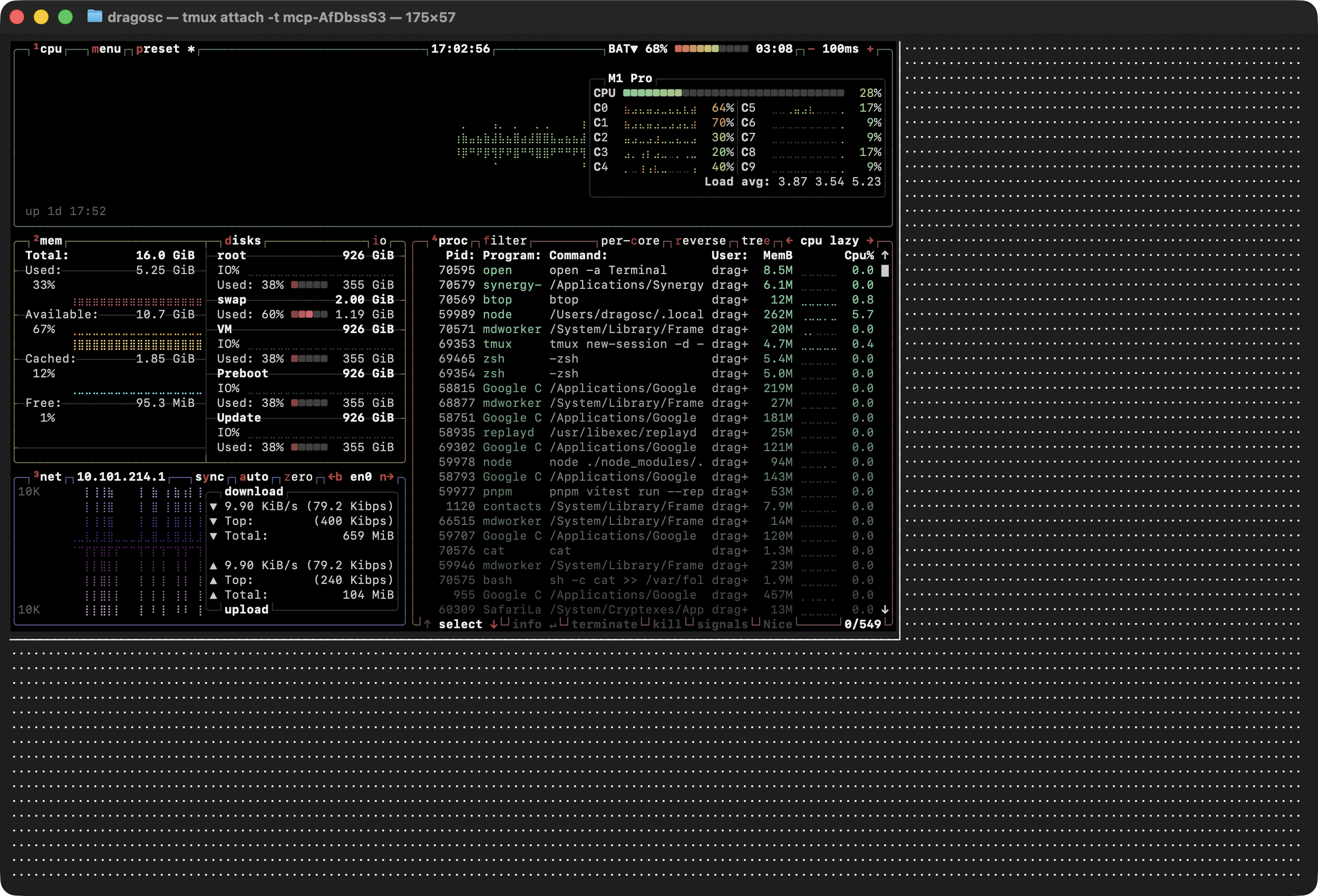
By exposing this through the Model Context Protocol (MCP), an AI assistant like Claude Code or Cursor can run:
{
  "name": "create_snapshot",
  "arguments": {
    "session_id": "session_123",
    "format": "both" // Returns both plaintext and a base64 PNG
  }
}
The model actually “looks” at the screen, decides what to do next, and then uses a send_keys tool to fire keystrokes (like j, k, Enter, or Ctrl+C) back into the tmux session. It creates a complete, closed feedback loop.
The Cross-Platform Chasm
If you look around, there are a few other MCP servers that touch on terminal or window automation. For example, projects like kwin-mcp are incredibly powerful. But they all share a common flaw: they are hyper-specialized for very specific technologies or locked to a single operating system (like Linux/KDE).
I didn’t want a tool that only worked on my Linux rig but broke when my coworker tried to use it on their MacBook. I wanted mcp-tuikit to cover all three major OSs—macOS, Windows, and Linux—and support multiple GUI backends.
I won’t lie: making this work natively everywhere is incredibly painful.
The messy reality of software engineering is that “headless” means different things to different operating systems. If you spawn a native terminal emulator like Alacritty or WezTerm on macOS or Windows, the OS really wants to draw a physical window on your screen. True headless native rendering—where the GPU draws the UI without displaying a window—basically requires Linux and a virtual compositor like Xvfb, Sway, or kwin.
To work around this and ensure true cross-platform support, mcp-tuikit uses fallback backends. If you want true invisible execution on a Mac or Windows machine without windows popping up, we spin up xterm.js inside a headless Playwright browser. It’s slightly heavier, but it completely isolates the AI’s workspace from your physical desktop, and most importantly: it works exactly the same way everywhere.
Tying it Together
If you are leaning on AI to build CLI tools, or trying to automate end-to-end testing for TUIs, you need a way for the agent to verify visual state and send raw keystrokes.
With mcp-tuikit, you can literally tell your agent: “Create a new session, run the dev server, take a screenshot, and fix the layout padding.”
No more ANSI vomit. No more hanging prompts. And best of all, no more playing human screenshot API. Just an agent, a virtual keyboard, and a pair of eyes that actually work on whatever OS you happen to be running.
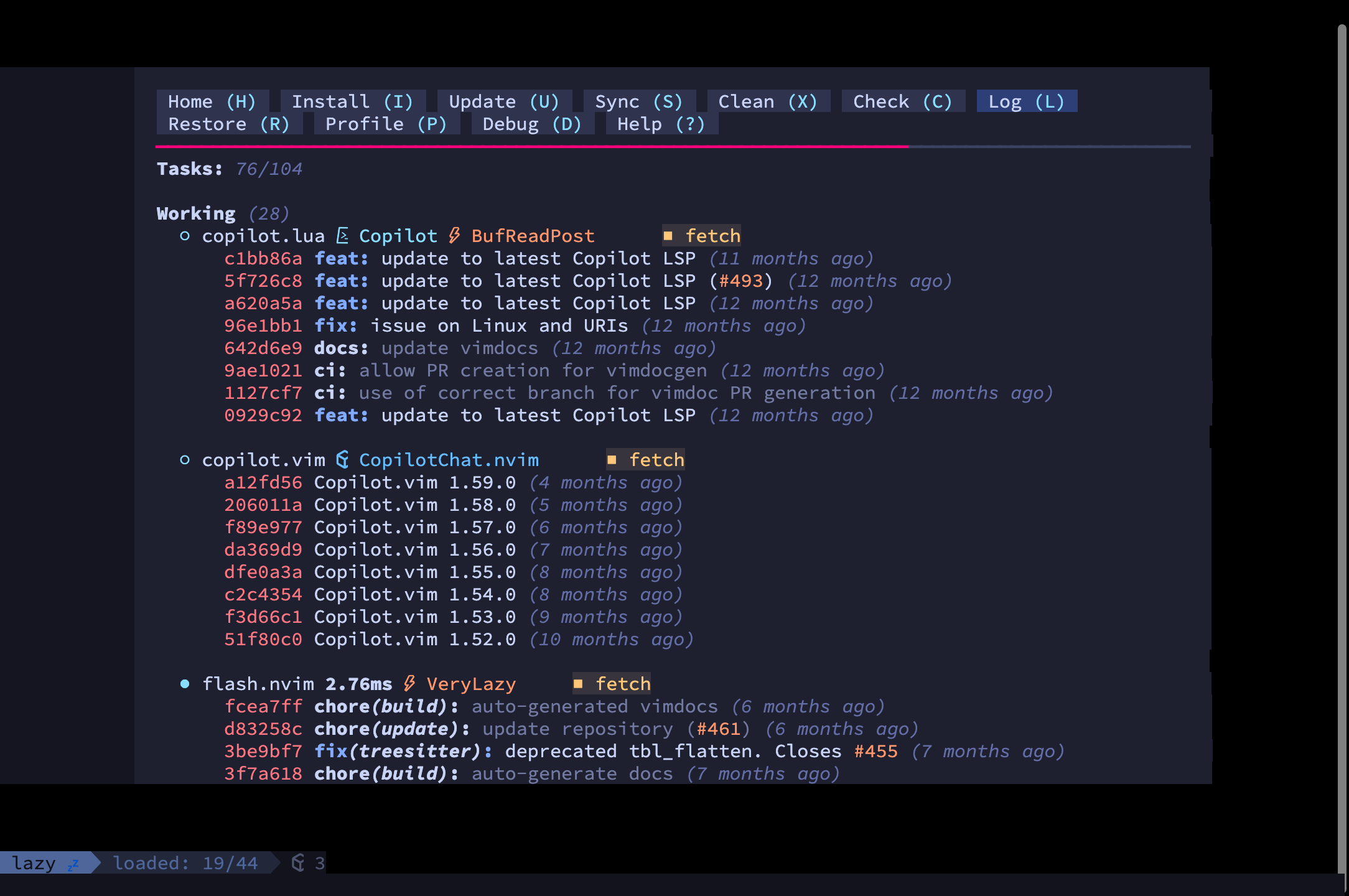
If you want to give your AI agent its own terminal, you can check out the source code, installation instructions, and docs over on GitHub: github.com/dragoscirjan/mcp-tuikit.